How to Tell If a Photo Was Edited
Find the traces editing software leaves in a file, and learn what they can and cannot prove.
By the ExifMeta teamLast updated: October 7, 2026
Short answer
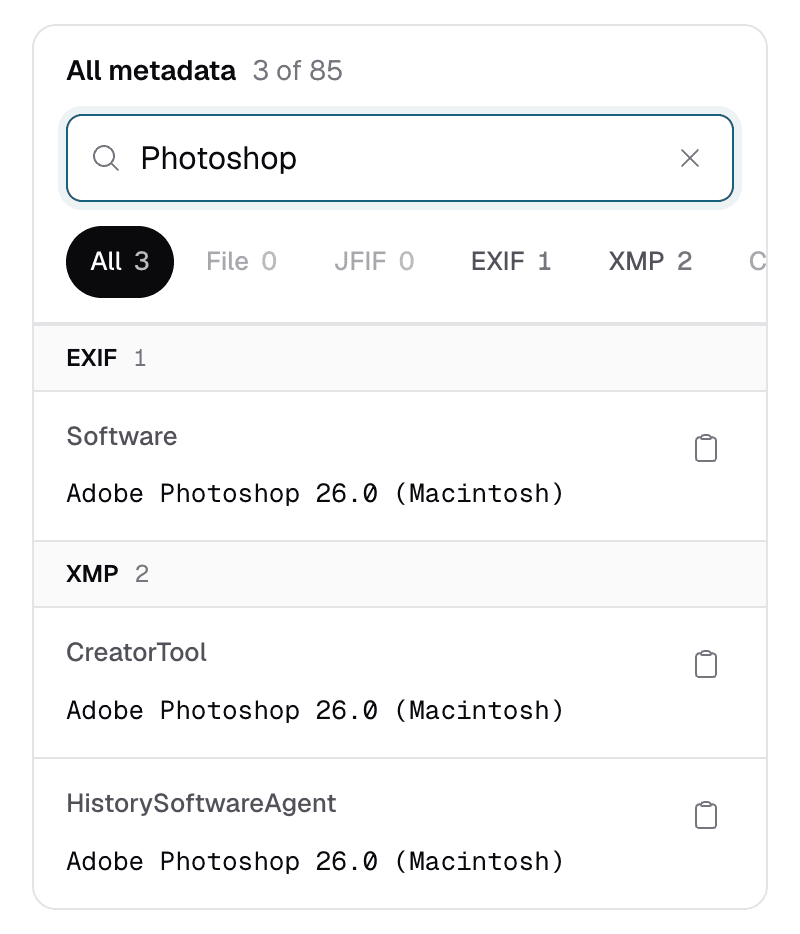
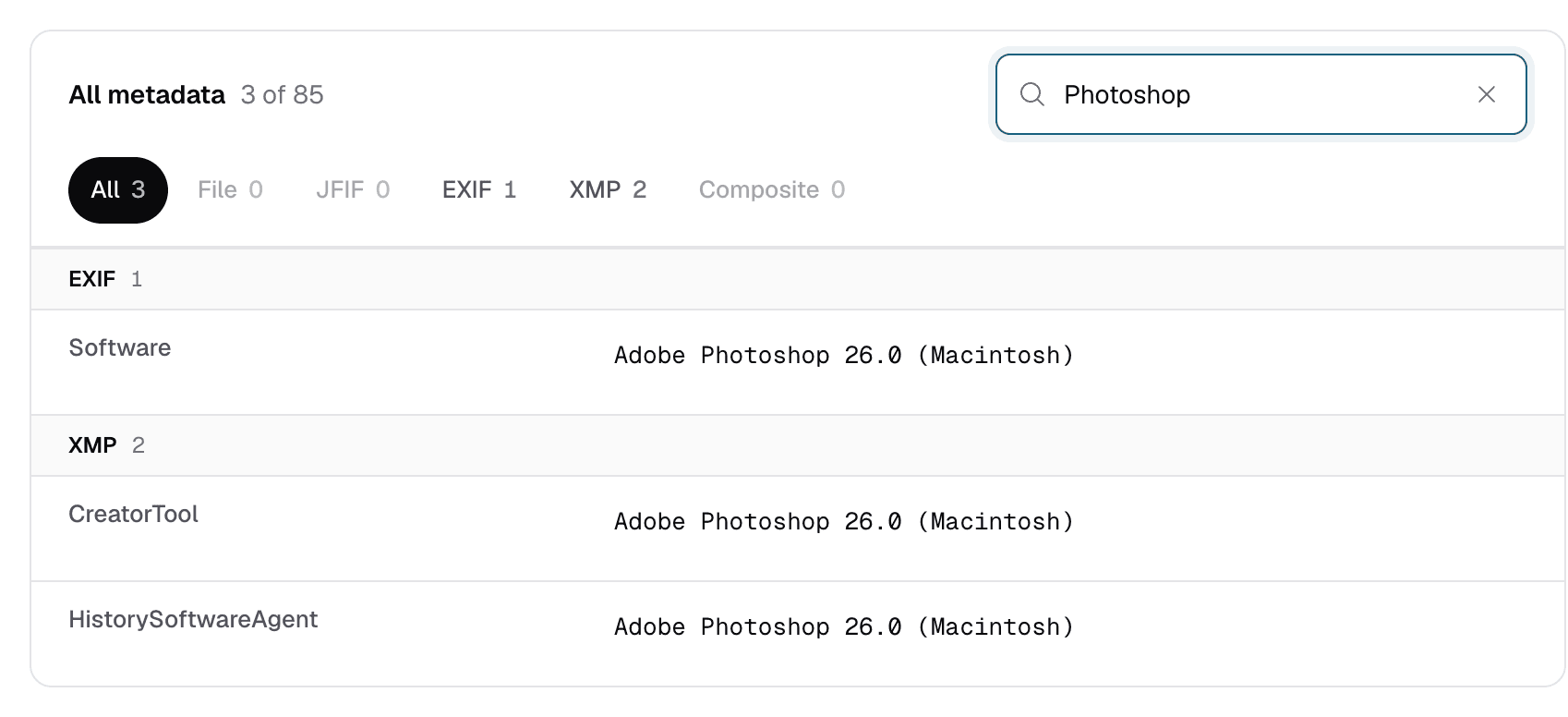
Upload the photo and look at the Software, CreatorTool, and XMP history tags, then compare ModifyDate with DateTimeOriginal. An editor's name or a later modify date suggests the file was edited or re-saved.
Metadata can only suggest editing. It can never prove a photo is unedited: metadata is easy to remove or fake, so a file with no traces of editing may still have been changed.
Check a photo step by step
- Get the closest copy to the original. A file sent through a messaging app or downloaded from social media has usually been re-encoded, and its metadata may be stripped or rewritten along the way.
- Open the metadata viewer and drop the file in, or paste a direct http or https link to it.
- Search for software tags. Type “Software”, then “CreatorTool”, then “History” into the “Search tags and values” box under All metadata.
- Compare the dates. Search “Date” and check whether
ModifyDateis later thanDateTimeOriginal. - Check what is missing. Note whether the file still has camera maker notes, and whether the image size makes sense for the camera it names.
Tags that hint at editing
No single tag settles the question. Read them together, and treat each one as a clue rather than proof.
| Tag | What it may tell you |
|---|---|
Software | The program that last wrote the file. A desktop editor here (for example Adobe Photoshop or GIMP) means the file was saved by that editor. Phones and cameras also write this tag, often with just a firmware or OS version. |
CreatorTool | The XMP equivalent of Software. Editors that use XMP usually record their name and version here. |
HistoryAction, HistorySoftwareAgent, HistoryWhen | XMP edit history. Some editors log each save or conversion, with the program and time. When present, this is the most detailed trail you will find. |
ModifyDate | When the file was last changed, according to the program that saved it. A gap after DateTimeOriginal suggests the file was re-saved later. |
MakerNotes group | Camera-specific data. Many editors drop or rewrite it, so a photo that names a camera model but has no maker notes may have been through other software. |
ImageWidth, ImageHeight | The pixel size. If it does not match any size the named camera produces, the image may have been cropped or resized. |
Compare the dates
DateTimeOriginal is when the camera captured the photo. ModifyDate is updated by many programs when they save the file. When the two match, the file was probably not re-saved by an editor that updates the date. When ModifyDate is hours or years later, something wrote to the file after capture.
That “something” is not always an edit. Rotating a photo, adding a rating, or renaming it in a photo manager can also update the date.
Ignore the dates in the File group. They describe the temporary copy on our server, not your original. Learn which dates to trust.
What missing data means
A photo straight from a camera or phone usually carries a full set of EXIF tags, maker notes, and often an embedded thumbnail. When those are thin or absent, the file has probably passed through other software. Common reasons:
- An editor exported a new file and kept only some of the original tags.
- An app or website stripped metadata from the copy it published or sent.
- It is a screenshot or a screen recording, not the original capture.
- Someone removed the metadata on purpose.
Missing metadata tells you the file is not a camera original. It does not tell you whether the picture itself was altered.
Some editors also leave the embedded thumbnail untouched, so it can show the image before a crop or retouch. With ExifTool on your computer, you can save the thumbnail and compare it with the full image:
exiftool -b -ThumbnailImage photo.jpg > thumb.jpgContent Credentials
Some cameras, editors, and AI image tools now attach Content Credentials, based on the C2PA standard. These are signed records of how a file was made and changed, stored in a JUMBF block inside the file. Recent versions of ExifTool can show some of this data, but ExifMeta does not check the signatures.
To check whether Content Credentials are valid, use the Content Credentials Verify tool. Like other metadata, credentials can be stripped, so a file without them proves nothing either way.
Check Your Photo for Edits
Upload a photo to see its software tags, edit history, and dates. Free, no account needed.