How to View HEIC Photo Metadata
Read the camera settings, date, and location inside the photos your iPhone saves as HEIC.
By the ExifMeta teamLast updated: October 7, 2026
Short answer
Upload the original .heic file to ExifMeta. HEIC photos carry the same kind of metadata as JPEGs, including camera settings, the capture date, and GPS location, and ExifMeta reads it directly. You don't need to convert the photo first, and converting it can change what metadata survives.
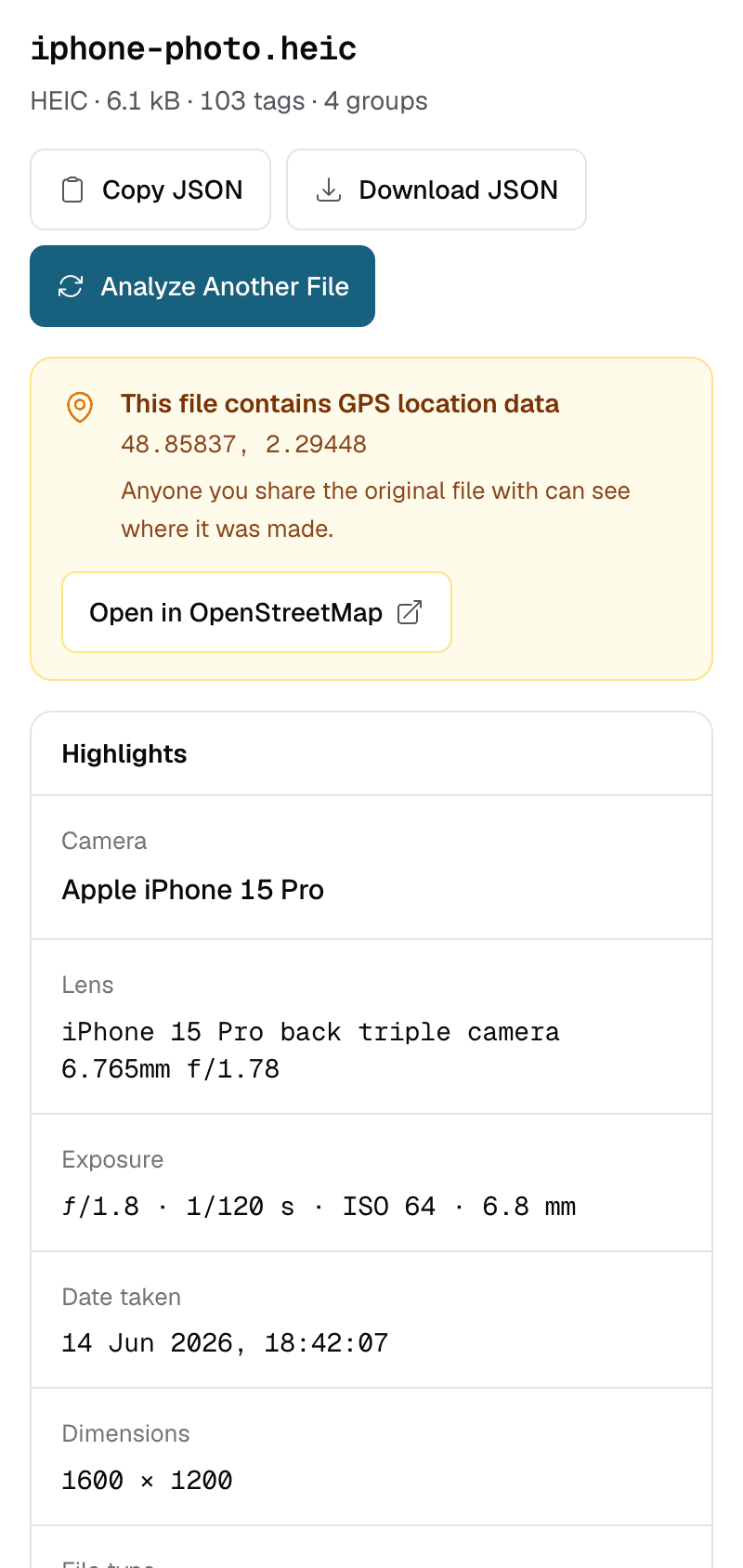
What a HEIC file is
HEIC is an image file based on HEIF, the High Efficiency Image File Format. The picture inside is compressed with HEVC, the same codec many phones use for video. This makes files noticeably smaller than JPEGs of similar quality.
iPhones save photos as HEIC when the camera format is set to “High Efficiency”, which is the default. You can check this in Settings › Camera › Formats. Choosing “Most Compatible” there makes the camera save JPEG instead. Some Android phones and cameras can also save HEIF or HEIC files.
The extension can be .heic or .heif, and files with either name are read the same way. Being smaller doesn't mean holding less information: a HEIC photo stores its metadata alongside the image, and that metadata is as detailed as in a JPEG from the same camera.
View HEIC metadata step by step
- Get the original file. On a Mac, export it from Photos with File › Export › Export Unmodified Original. On Windows, copy it from the phone over USB. If HEIC files arrive on your computer as JPEG, see Converting to JPEG below.
- Open the metadata viewer and drop in the
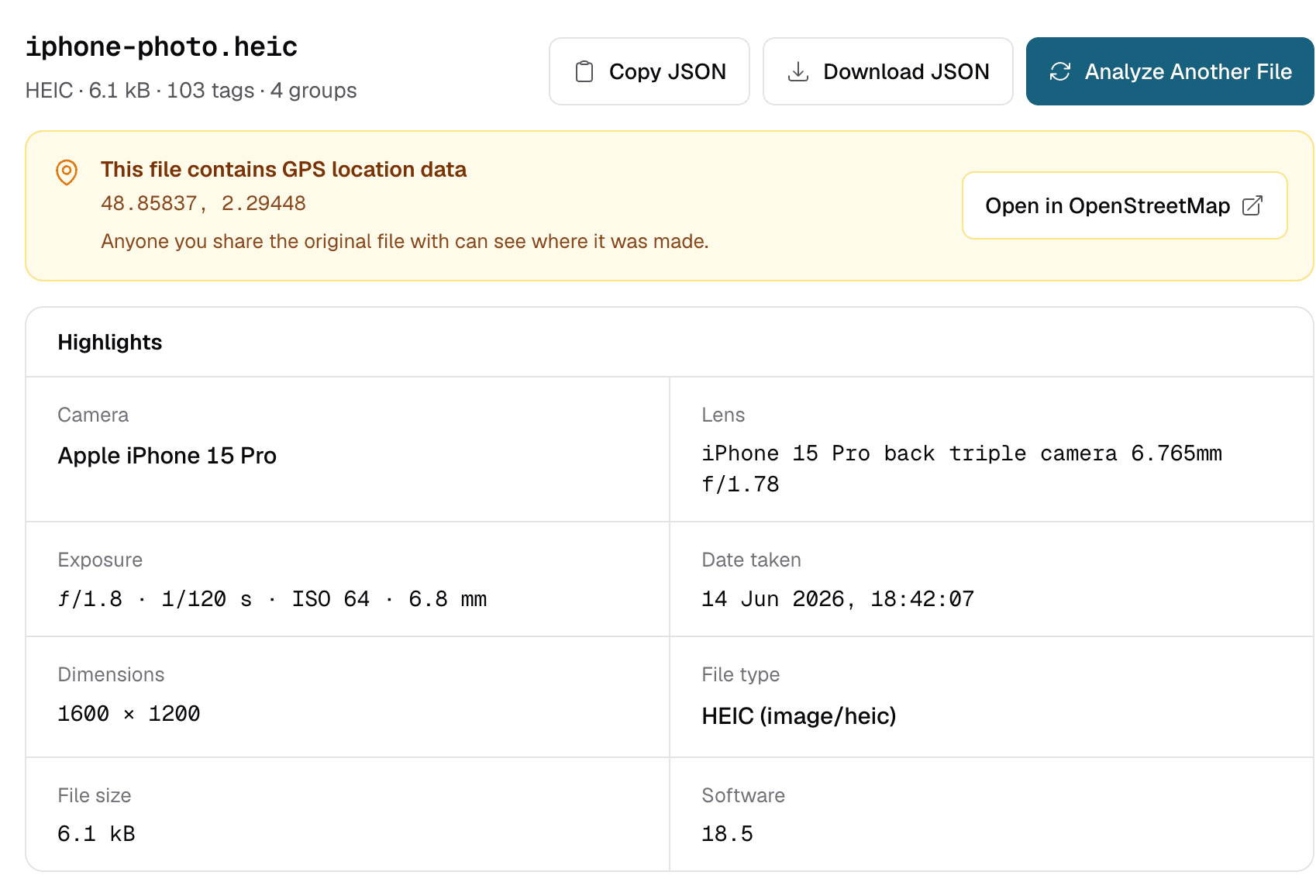
.heicfile. One file at a time, up to 50 MB. - Read the highlights. The camera, exposure settings, and capture date are summarised at the top. If the photo has a location, a GPS banner appears with the coordinates.
- Browse every tag. Type into the “Search tags and values” box under All metadata, for example “Lens” or “GPS”, to list only the matching tags.
Your browser doesn't need to be able to display HEIC: the file is read on the server by ExifTool and deleted right after the metadata is extracted.
Where the metadata lives
A HEIC file is a container that holds the image alongside separate metadata blocks. ExifMeta shows them grouped the way ExifTool reports them:
| Group | What it holds |
|---|---|
EXIF | Camera, lens, exposure settings, capture date and time, and GPS location. The same tags a JPEG uses. |
MakerNotes | Extra data written by the camera maker. On iPhone photos, ExifTool decodes these as Apple maker notes. |
XMP | Editing and descriptive data written by apps, such as edit history, ratings, or captions. |
ICC_Profile | The color profile, which tells software how to display the colors correctly. |
QuickTime | Details about the HEIC container itself, such as image dimensions and how the image is encoded. |
Composite | Values ExifTool calculates from other tags, for example a combined GPSPosition or the shutter speed in a readable form. |
Not every file has every group. A photo edited in another app may add XMP, and a photo taken with location turned off has no GPS tags. The metadata standards overview explains EXIF and XMP in more detail.
Details specific to iPhone photos
- Which camera was used. The
LensModeltag names the iPhone and the lens, for example the main or ultra wide camera, with its focal length and aperture. - Apple maker notes. iPhones write extra data that ExifTool decodes as Apple maker notes. Many of these tags are undocumented by Apple, so treat their values as technical detail rather than something to rely on.
- Live Photos. A Live Photo is two files: a HEIC still and a short MOV video. Each one has its own metadata, and the two are linked by a matching content identifier. Upload the MOV separately to see the video's metadata.
- Portrait and HDR photos. A HEIC can hold extra images besides the main picture, such as a depth map from Portrait mode. These are image data stored in the file, not readable tags.
Converting to JPEG can change the metadata
HEIC photos are often turned into JPEGs along the way, sometimes without you noticing:
- In Settings › Photos › Transfer to Mac or PC, the “Automatic” option converts photos to a compatible format when copying them to a computer. “Keep Originals” copies the HEIC file as is.
- Sharing a photo to some apps or websites, or picking it from the photo library in a browser, may hand over a converted JPEG instead of the original.
- Converter apps and online converters each decide which tags to copy into the new file.
A conversion can keep the EXIF data, keep only part of it, or drop it entirely, and the result depends on the tool. If you want to know what the original photo contains, check the original HEIC. If you want to know what someone else will see, check the exact file you are about to send. ExifMeta only reads metadata; it does not convert files or change what is inside them.
Check Your HEIC Photo
Upload a HEIC file to see its camera settings, date, and location. Free, no account needed.