How to View Video Metadata (MP4 and MOV)
See when, where, and on what device a video was recorded, and why its dates can look off.
By the ExifMeta teamLast updated: October 7, 2026
Short answer
Upload the MP4 or MOV file to ExifMeta, or paste a direct link to it. Video metadata appears mostly in the QuickTime group: duration, resolution, frame rate, codec, and creation dates. Phone videos often add the device model and GPS coordinates. Files must be 50 MB or smaller, so long phone videos usually need to be trimmed first.
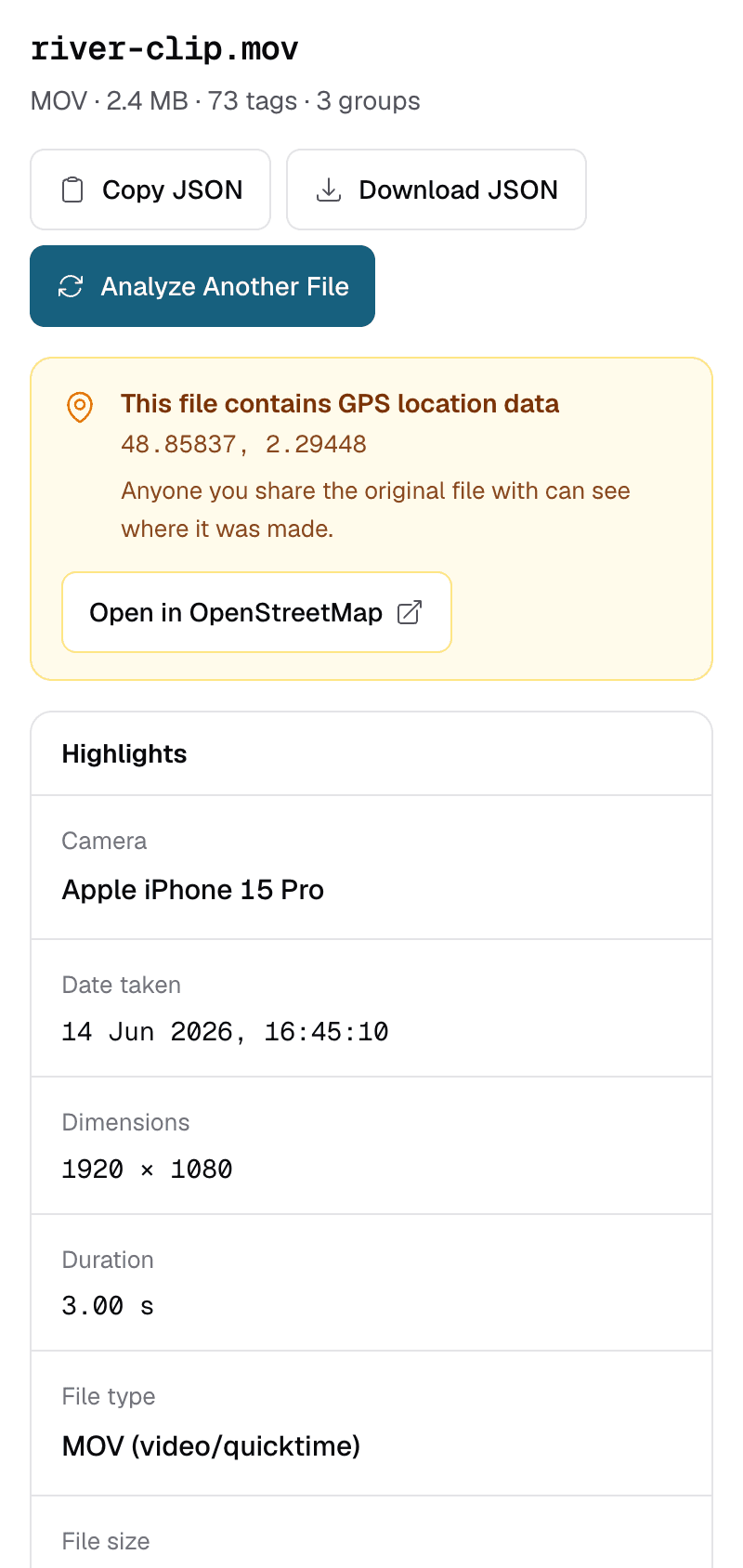
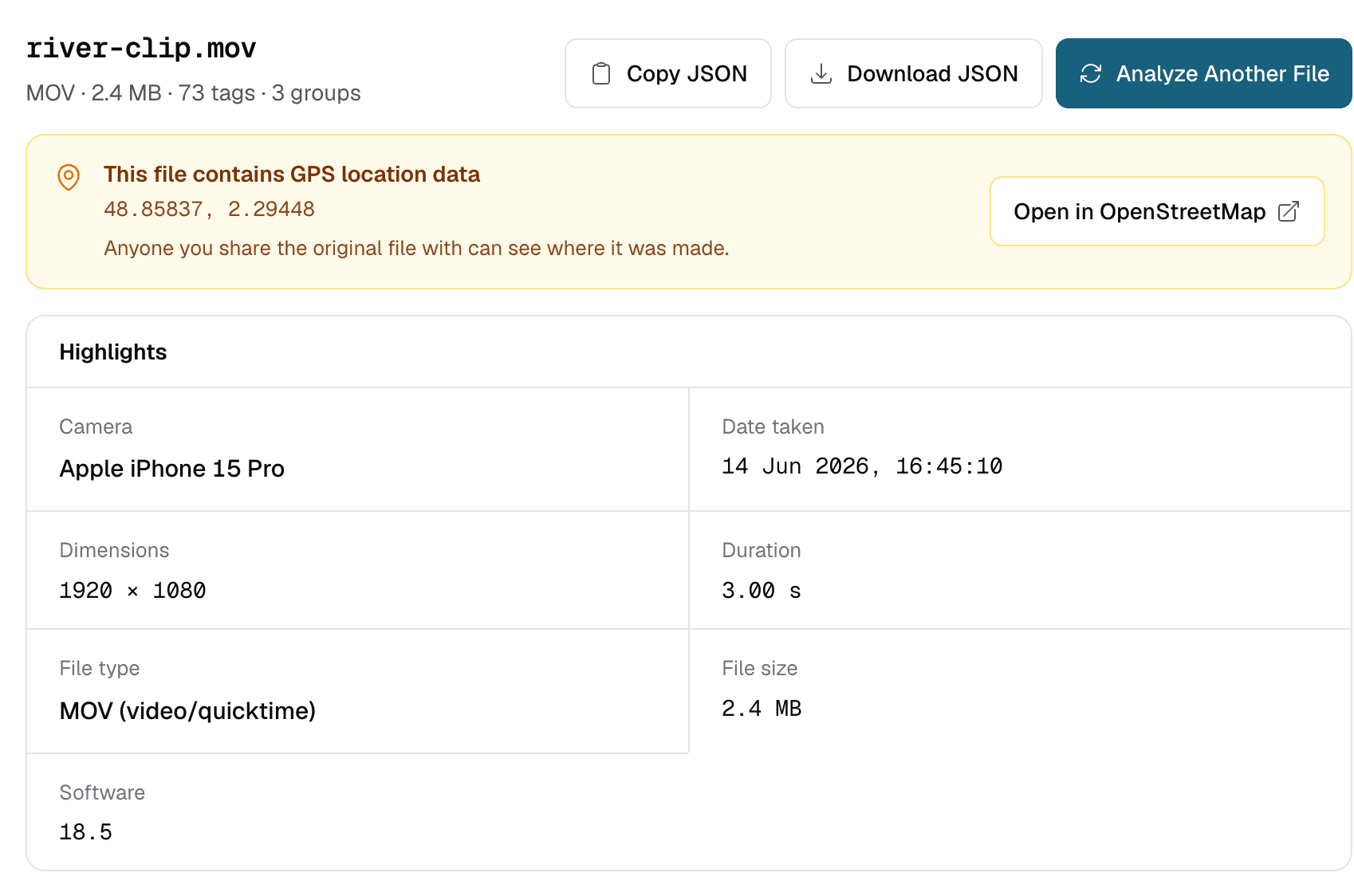
Check a video step by step
- Use the original file. Videos sent through messaging apps or downloaded from social platforms are usually re-encoded, and most of the original metadata is lost along the way.
- Open the metadata viewer and drop the video in, or paste a direct http or https link to it. One file at a time, up to 50 MB.
- Read the QuickTime group. MP4 and MOV share the same container structure, so ExifTool reports both under QuickTime. On iPhone videos, the device model and local capture time are in this group as well.
- Search for a tag. Type a name such as
DurationorGPSCoordinatesinto the search box to jump to it.
Why video dates look off by hours
The QuickTime format stores CreateDate and MediaCreateDate in UTC, with no time zone attached. ExifMeta shows the value as it is stored, so a video recorded at 6 pm in New York can show a time several hours later. Your local time is the stored time plus your UTC offset.
Not every camera follows the rule. Some write local time into the same tags, so a date can be right or off depending on the device. When a file has a CreationDate tag with an offset such as +02:00, trust that one: it records both the local time and the time zone. The “Date taken” summary at the top of the results reads CreateDate first, so on iPhone videos it can show the UTC time. Check CreationDate in the QuickTime group for the local time.
Ignore the dates in the File group, such as FileModifyDate. They belong to the temporary copy on our server, not your original video. The photo date guide explains this in more detail.
Where videos store location
Videos do not use the EXIF GPS tags that photos use. Location usually sits in a single GPSCoordinates tag, holding latitude, longitude, and sometimes altitude. It appears in the QuickTime group; search for “GPS” to find it.
- iPhones write location to videos when Location Services are on for the Camera app.
- Many Android phones write it too, controlled by the camera’s location setting.
- Screen recordings, edited exports, and re-encoded copies often have none.
The location guide covers how precise coordinates are and how to keep them out of files you share.
Signs a video is not the original
When an app re-encodes a video, it writes a new file and usually keeps only the basics. A few clues that you are looking at a copy rather than the camera original:
- No
MakeorModel, and no GPS, even though the device normally writes them. CreateDatematches the day it was shared or downloaded, not the day it was recorded.- A software or encoder name from an editing or messaging app instead of the phone’s own.
- A lower resolution or frame rate than the device records.
None of these proves a video was edited. Missing metadata only tells you the file passed through something that did not keep it.
The 50 MB limit
ExifMeta accepts one file up to 50 MB. Most phone videos longer than a short clip are bigger than that, especially in 4K. A few ways to check a large video anyway:
- Trim a few seconds from the original on the device. Trimming in the phone’s own Photos or Gallery app usually keeps the main metadata, but check the result.
- Record a short test clip with the same settings to see what your device writes.
- For full-size files, run ExifTool on your own computer:
exiftool -G1 video.mov
ExifMeta only reads metadata. It does not edit, strip, or convert videos.
Check Your Video Now
Upload an MP4 or MOV file up to 50 MB to see its metadata. Free, no account needed.